How to Fix No Shipping Methods Were Found Error in WooCommerce
How to Fix No Shipping Methods Were Found Error in WooCommerce
 Hashim Puthiyakath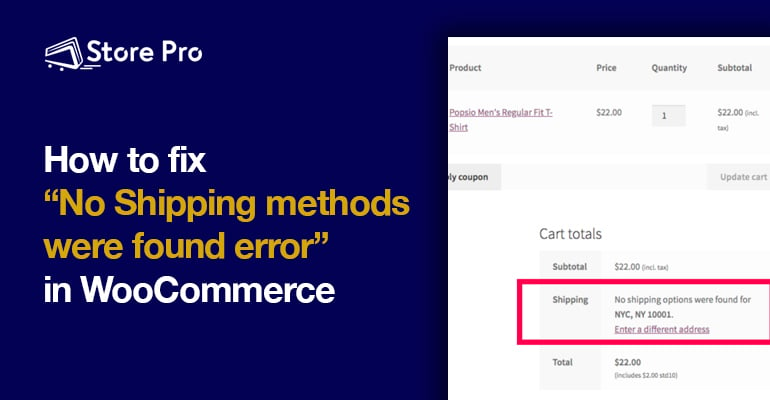
One of the common issues new clients approach us with is “No shipping methods were found error” in their WooCommerce store when a customer tries to checkout.This issue is often related to woocommerce no shipping options being available or configured incorrectly.
 lt=”” width=”800″ height=”712″ />
There are multiple reasons why this error could happen. The most common reasons include:
- Products with no weight and dimensions
- No shipping method added to the shipping zone
- Shipping carrier account configuration issues</li></li>
- Shipping service not available for the address
- Incorrect shipping address entered by the customer</li></l
- i>
In this blog, we show you how to identify the issue that causes this error and how to fix it.
Table of Contents
- Common reasons and solutions for the “there are no shipping methods available” error.
- Products with no weight and dimensions
- No shipping method added for the shipping zone
- Incorrect shipping address entered by the customer
- Shipping service not available for the address
- Shipping carrier account configuration issues
- Summary
Common reasons and solutions for the “there are no shipping methods available” error.
It’s relatively easy to find and sort out the problem causing this issue. The first thing you need to do is if the error occurs for all products and shipping addresses. This way, you can easily figure out if the issue is with the product settings or shipping settings. Or if you’re facing a WooCommerce no shipping options issue.
Products with no weight and dimensions
If you get that there are no WooCommerce shipping options available error for only particular products, missing product details could be the reason. These include weight and dimension for those specific products.
Shipping is the delivery of a physical item to one place to another. Every physical item should have a weight and dimension.
So, if you don’t add weight and dimension details when you create a product in WooCommerce, the item can’t be shipped. After all, a product with no weight and dimension is ‘nothing’.
Solution
Go to the product settings page and ensure you have filled the weight and dimensions field correctly. This is under the Shipping tab in the Product data section on the Edit product page.
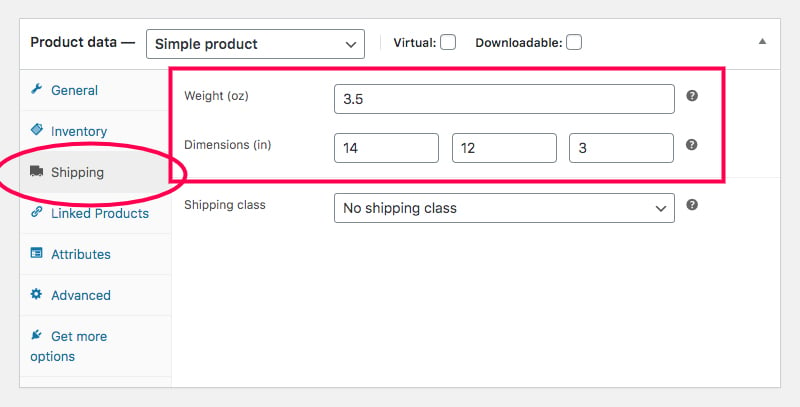
While you are at it, please also ensure that you have assigned a shipping class to the product as well.
Imagwe2-1
No shipping method added for the shipping zone
WooCommerce won’t show shipping methods on the checkout page. This happens if the shipping address falls into a zone with no shipping method assigned.
Configuring the shipping zones correctly is one of the first things you need to do. Especially when you start an ecommerce store with WooCommerce.
When you create a shipping zone, you need to
- Give a name to the shipping zone
- Choose regions (continents/countries/states) and
- Add a shipping method for the zone
If you don’t add at least one shipping method to any shipping zone, WooCommerce will show an error message. It says “there are no WooCommerce shipping methods available” when customers choose a shipping address in that zone.
Solution
First, check the shipping address that causes the error and identify the shipping zone in which the address comes. Then go to the shipping zone settings. Open the particular shipping zone and ensure that a shipping method is added to the shipping zone.
To access the shipping zone settings, go to WooCommerce > Settings and then choose the Shipping tab.
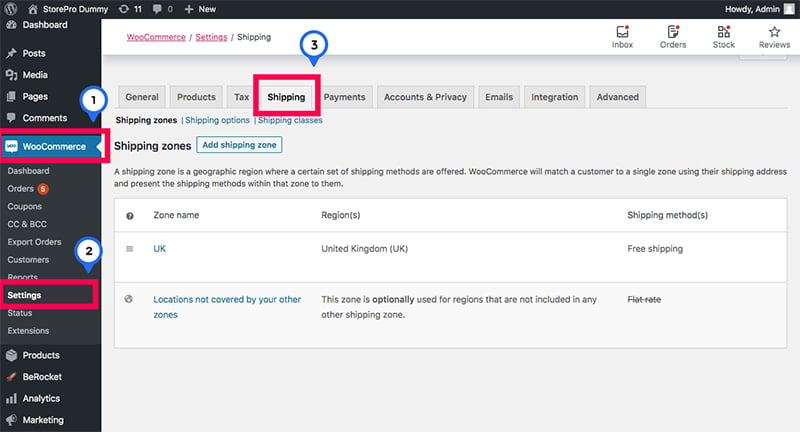
Now you can see the list of shipping zones you have already created.
Click on the Edit link under the name of the shipping zone. This should be the zone under which the problematic address falls, to open the Shipping zone settings page.
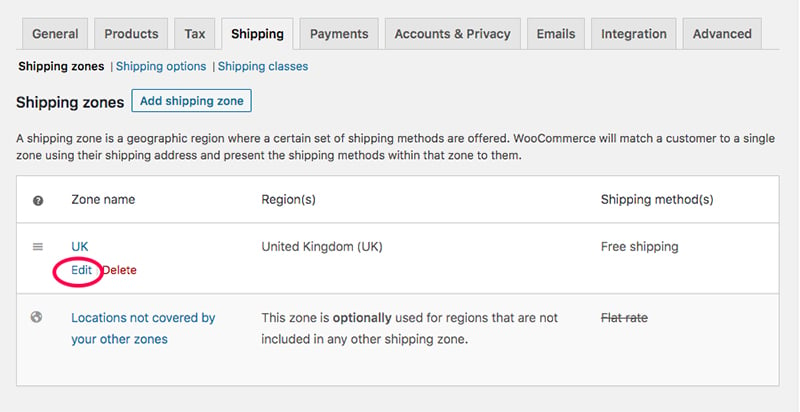
In the Shipping methods option, ensure that at least one shipping method is added and enabled.
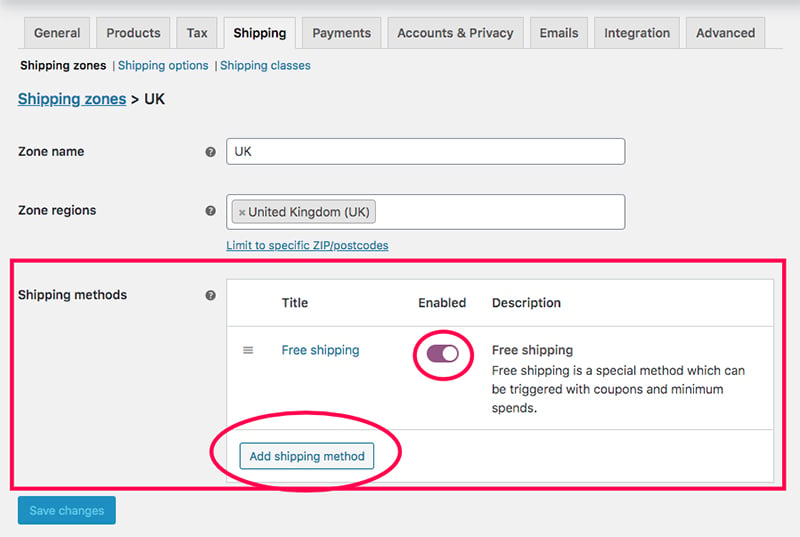
You can add and enable multiple shipping methods if you want.
Incorrect shipping address entered by the customer
More often than not, the “woocommerce no shipping options available error” is caused due to incorrect city names and ZIP/postcode.
Solution
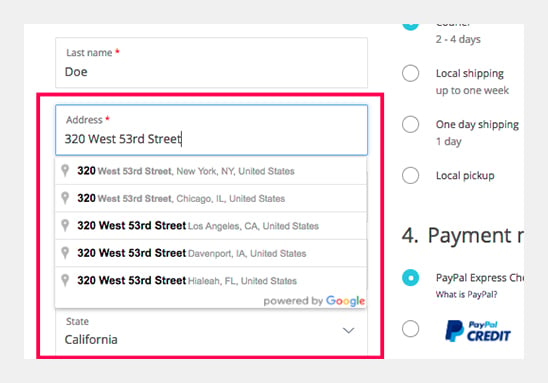
The best way to handle customers entering incorrect shipping address details is by using an address validation service. You can also use address autocomplete.
The address validation allows you to automatically validate the address while the customer types it. It can also show an error message if the customer has entered an incorrect address.
Address autocomplete, on the other hand, helps users enter only part of the street or address. Then they can select from the suggested addresses that pop up.
Both these methods will prevent the customers from entering incorrect shipping addresses.
Shipping service not available for the address
Shipping/courier companies like FedX offers different shipping services. Most of these services are generally limited to particular geographical regions and product types.
So, if you are using a shipping service and it doesn’t deliver to a specific region or beyond a certain weight limit, it could cause the WooCommerce no shipping method available error.
Solution
Check with the shipping service company. Ensure that the services you use include delivery to the particular area.
Shipping carrier account configuration issues
If you are using a shipping carrier like FedEx, you should have an account associated with the carrier. Then connect that account to your WooCommerce store.
If you made an error while configuring your shipping carrier account with WooCommerce, it could cause various issues. These include the WooCommerce no shipping methods available error.
Solution
Ensure that your shipping carrier account is properly configured in WooCommerce.
Summary
There are many reasons why you would get the “there are no shipping methods available” error. But the good news is that it’s not difficult to identify the problem causing the error and fix it. All you need to do is find if all shipping addresses or all products cause the error, shortlist the number of potential reasons based on that and check for the problem.
Want to experience what trusted eCommerce support feels like? Sign Up For A Trial
 Shares