How to Hide Coupon Code Field on the WooCommerce Checkout Page
How to Hide Coupon Code Field on the WooCommerce Checkout Page
 Hashim Puthiyakath
Offering coupon codes is a great strategy to increase sales.
However, always displaying a coupon box on the cart page or checkout page may not be such a great idea! Because it can distract the customers from proceeding to complete the checkout process.
For example, let’s take a look at the cart page of Wolf & Badger’s online store.
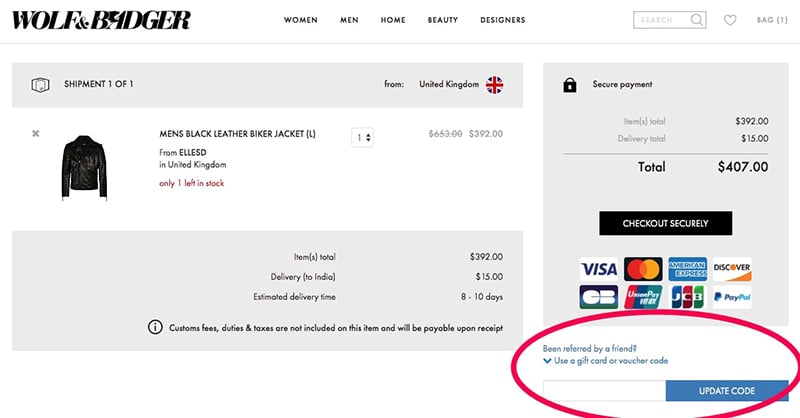
At the bottom right corner, you can see a field to enter the coupon code.
When customers see the coupon box where they can enter a coupon code, they may start looking for coupon codes. They may leave the checkout page searching for the discount coupons on the rest of your website, your social media accounts, or on Google.
This practice is known as coupon hunting and it’s very common.
From the search suggestions provided by Google when I just typed wolf and badger in the search input field, you can see that there are two suggestions related to the coupon or promo code.
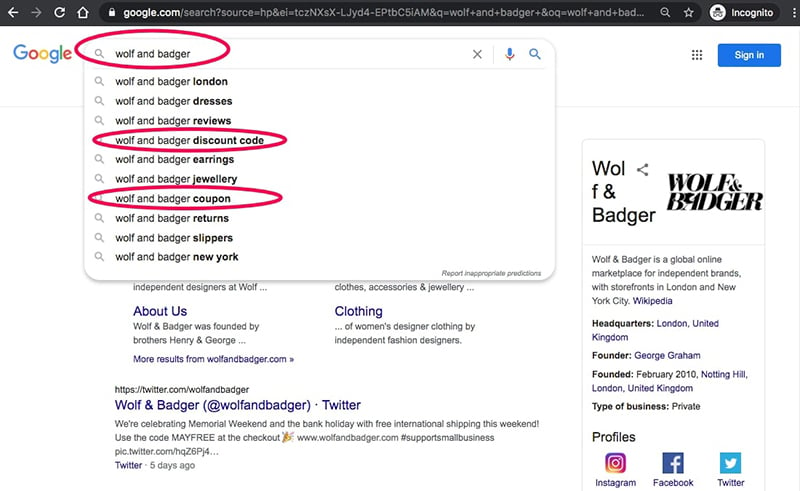
It means there are lots of people searching for coupon codes for Wolf & Badger online store, probably after seeing the input field to enter coupon code on the checkout page.
Some of these people who go after coupons may decide to postpone their purchase until they get a coupon code.
Some others may never come back.
This will hurt your conversion!
So, it’s a good idea to hide the coupon code field from the checkout page when you don’t have any active coupons to prevent customers from leaving the checkout process for coupon hunting.
In this blog, we will show you how to disable the coupon code feature in WooCommerce and how to hide the coupon field on the cart or checkout page.
We will also share a few proven strategies to prevent cart or checkout abandonment due to coupon hunting.
Disabling the coupon field from the cart and checkout page on WooCommerce
If you do not have any active coupon or promo codes, there’s no need to keep the coupon field visible. You can easily remove it from the checkout page.
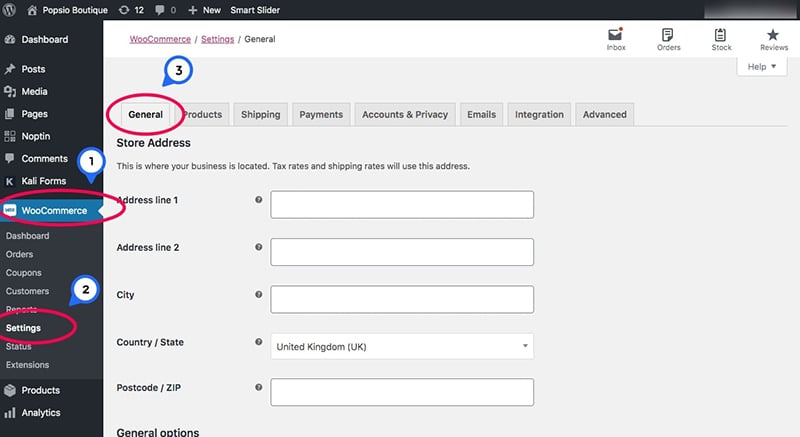
Go to WooCommerce > Settings to open the WooCommerce settings page and choose General from the list horizontal tab groups.
Scroll down a bit to the Enable coupons section and uncheck the checkbox nearby Enable the use coupon codes.
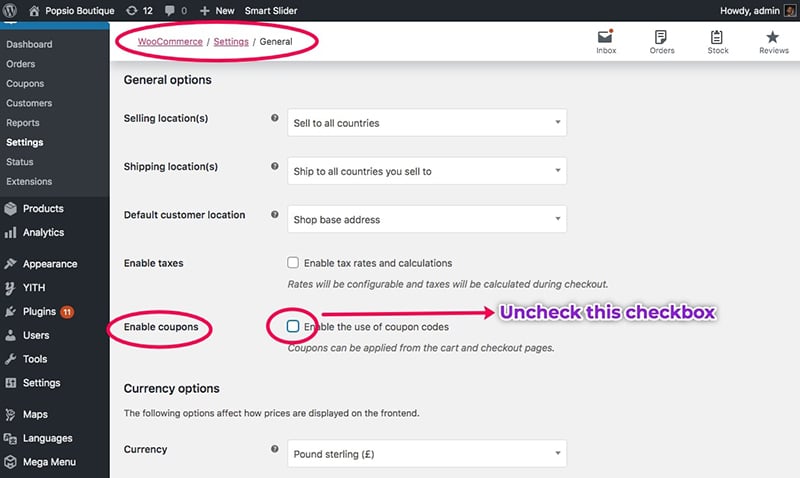
If you uncheck this checkbox, WooCommerce will remove the coupon code fields from all pages of your store.
Once you make the changes, don’t forget to click the Save changes button.
Disable coupon code field only on the WooCommerce checkout page or cart page
Disabling coupon code from the WooCommerce will remove the coupon code field from the WooCommerce store completely. So, customers can’t see the coupon code field in both the checkout page and the cart page.
But sometimes, you may want to disable the coupon field on just one page either the cart or checkout. At the same time, you might want to keep it visible on the other page.
You can achieve this by adding a few lines of PHP code to your theme’s functions.php file.
Step 1: Open WordPress Theme Editor
In the WordPress Dashboard, go to Appearance > Theme Editor to open the WordPress Theme Editor screen.
Step 2: Choose functions.php
In the Theme Editor screen, you can see the list of files in your active theme’s folder. Scroll down through the list. Then, click on the Theme Functions (functions.php) file to open it in the text editor screen.
Step 4: Copy the PHP code
Depending on the page where you want to disable the coupon code field, choose the appropriate PHP code snippet. You can copy either of the two provided below.
PHP code to disable coupon code field in the cart page
// hide coupon field on the cart page
function disable_coupon_field_on_cart( $enabled ) {
    if ( is_cart() ) {
        $enabled = false;
    }
    return $enabled;
}
add_filter( 'woocommerce_coupons_enabled', 'disable_coupon_field_on_cart' );
PHP code to disable coupon code field in the checkout page
<?php
// hide coupon field on the checkout page
function disable_coupon_field_on_checkout( $enabled ) {
    if ( is_checkout() ) {
        $enabled = false;
    }
    return $enabled;
}
add_filter( 'woocommerce_coupons_enabled', 'disable_coupon_field_on_checkout' );
Step 5: Add the PHP code to functions.php
In the WordPress Theme Editor screen, scroll down to the bottom of the functions.php file. Paste the code at the end.
Step 6: Save changes
After making your changes, click the Save Changes button.
Hide coupon code fields with CSS
When WooCommerce applies a coupon automatically to the cart, displaying the coupon code field becomes unnecessary. This applies both the cart and checkout pages.
WooCommerce applies the coupon code to the cart automatically, whether or not users enter it. So, there is no need to show the coupon code field again because that will confuse the customers. They may also think that they can use a coupon code again and may start coupon hunting.
In that case, you may want to hide the coupon code field from the cart page and checkout page.
If you disable the coupon code from WooCommerce settings, as shown in the first method, automatic coupons will not work. That happens because you’ve disabled the entire coupon feature in WooCommerce.
If you’re using automatic coupons, smart coupons, or URL coupons, hiding the field may be better. You can still keep the WooCommerce coupon feature enabled.
As a result, users won’t see the coupon code fields, but WooCommerce will apply the coupon automatically to their cart.
You can meet this requirement by hiding the coupon code fields using CSS.
Step 1: Open Theme Customizer
In your WordPress admin dashboard, navigate to Appearance > Customize to open WordPress Customizer.
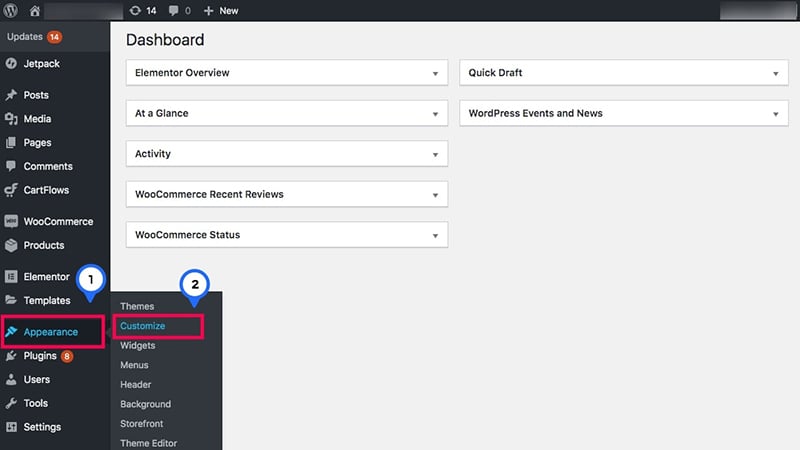
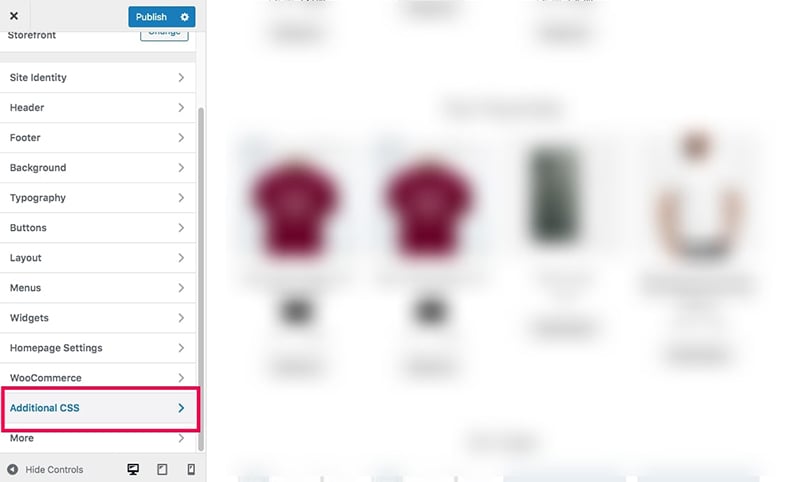
Step 2: Choose Additional CSS
From the list of menus in the left sidebar, choose Additional CSS.
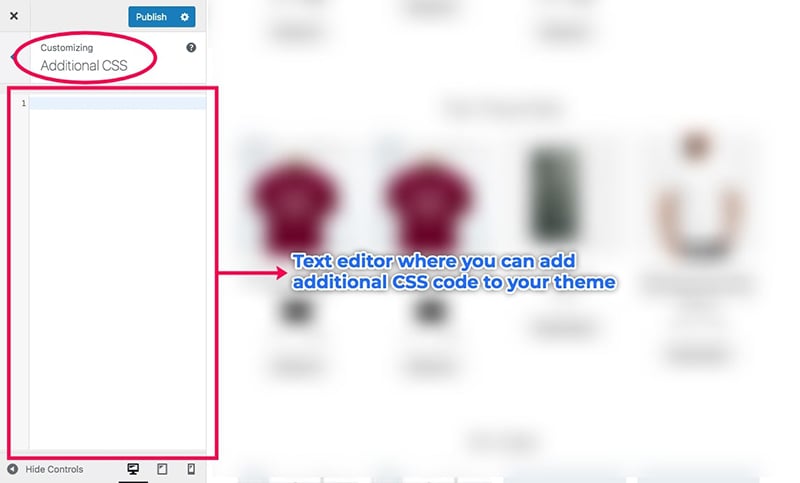
Now, you’ll see a small text editor window on the left side. This is where you can add additional CSS to your theme.
Step 3: Copy the CSS code below
Depending on which pages you want to hide the CSS code, copy any of the three following CSS code snippets
To hide the coupon code fields on both the cart and checkout pages, use this CSS:
.woocommerce-checkout .woocommerce-form-coupon-toggle,
.woocommerce-cart-form .coupon {
            display: none !important;
}
If you only want to remove the coupon field from the cart page, apply the code below:
.woocommerce #content table.cart td.actions .coupon,
.woocommerce table.cart td.actions .coupon,
.woocommerce-page #content table.cart td.actions .coupon,
.woocommerce-page table.cart td.actions .coupon,
.woocommerce-cart-form .actions {
    display:none !important;
}
Alternatively, to hide the coupon field on the checkout page only, use this:
.woocommerce-checkout .woocommerce-form-coupon-toggle {
            display: none;
}
Step 4: Paste the CSS code to Additional CSS text editor window
Copy any CSS code snippet from above. Then, paste it into the small editor window on the left side of the WordPress Customizer screen.
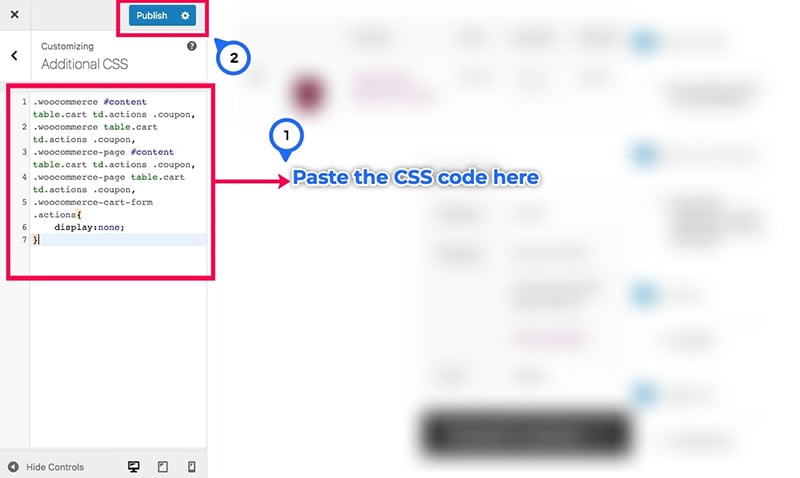
After adding the code, don’t forget to click on the Publish button at the top to save the changes.
Smart techniques to prevent coupon hunting
There are other ways to reduce cart abandonment besides disabling coupon features or hiding fields using CSS. You can also try several proven strategies that many store owners use.
Show available coupon codes>
Displaying available coupons on the cart page helps reduce abandonment. It prevents users from leaving the checkout process to search for coupons elsewhere.
It’s a good idea to include a link to a coupon page. Customers can view all available coupons there, or you can add a link that opens a popup with codes.
Show coupon code field only for those who have a coupon code
A customer typically gets coupon codes from promotional emails, social media promo posts, and affiliate marketers.
You can display the coupon field only when customers arrive from promotional links. These include links in emails, social media posts, or affiliate campaigns. Check for specific URL parameters to do this.
All other customers do not see the coupon code field.
Automatically apply coupon code
If a customer comes through a promo email, social post, or affiliate link, check the URL parameters. You can then choose to apply the coupon code automatically.
In such cases, customers won’t need to enter the coupon code manually. You also don’t need to display the coupon input field. WooCommerce should automatically apply the discount code when a customer reaches your online store through a promotional link.
Camouflage the coupon box
Another strategy is to subtly hide the coupon code section. This helps prevent users from actively hunting for codes.
Instead of placing the input field and button in plain sight, you can hide them inside an accordion or expandable section. Place it at the bottom so it’s less noticeable.
To make it even less prominent, reduce the font size of that expandable section. That way, customers may not notice it easily.
However, if a customer does have a promo code, they will likely search for the input field. Even if it’s less visible, they’ll still find it.
Summary
The coupon field in the cart and checkout pages often distracts customers. It can cause them to leave the checkout process during crucial moments. Try using the strategies discussed above. Monitor their performance to see which ones help reduce cart or checkout abandonment on your store.
Want to experience what trusted eCommerce support feels like? Sign Up For A Trial
 Shares